

Need to print something urgently & immediately?
Email your document to the Dockhands at reception: hello@thedockvictoria.com
* * *
To check your credit or ID number, log into your print account in PaperCut using your member portal credentials : http://192.168.4.133:9191

Printing at theDock
with PaperCut
What is PaperCut?
PaperCut is the name of the print management software used by theDock to help members manage their printing and copying. It offers features like print tracking, cost allocation, secure printing, and mobile printing to reduce waste and improve document security.
Each month, each member receives a $5.00 credit in their PaperCut account. As PaperCut integrates with OfficeRnD, any additional printing over the credit will be included in our regular billing cycles.
Before you start…
1. Be at theDock and logged into our member WiFi (SSID: The Dock).
Make sure that you are NOT logged into (The Dock Guest) WiFi
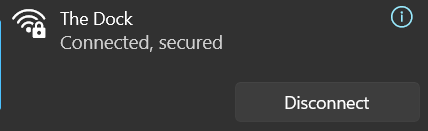
2. You must be an active Community Member (meaning you have a Community Membership and login access to the theDock’s Member Portal). You’ll need your Member Portal (OfficeRnD) login and password to complete this installation process.
Download the PaperCut Printer Driver
Step 1
Check to see if you already have the PaperCut driver called “theDockPrinters [1st & 3rd Floors](Mobility)” from a previous version of PaperCut. Go into your computer’s printer settings and delete any printers named “theDockPrinters [1st & 3rd Floors](Mobility)”. Once confirmed that no such printer is installed on your machine, move on to Step 2.
Step 2
Visit the following link on the device you wish to print from. This link will open in a new tab so you can come back to these instructions.
http://192.168.4.133:9163/setup
Step 3
Click the link to download PaperCut Mobility Print.
Note: You will need to allow the download for “PaperCut Mobility Print” even if it claims to be “insecure”. You may need to input your computer password to download the driver. If you are not able to download/install the driver because you are on a secure/corporate computer, please contact your organization’s IT administrators. Let us know if you need a hand navigating this.
Step 4:
Run the “PaperCut Mobility Print Installer” you just downloaded.
*** On PC - Input your Member Portal (OfficeRnD) (what you use for billing and booking space at the dock) login details during the setup process. For MacOS this step comes later, when you do use the printer for the first time.
How To Print
Step 1:
Choose “print” like you normally would.
Step 2:
Select “theDockPrinters [1st & 3rd Floors](Mobility)”, and select “print.” This option lets you print on either floor, you don’t need to choose!
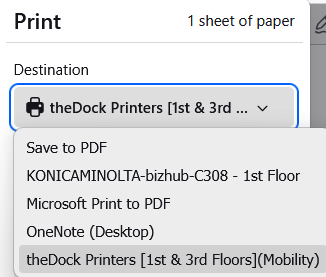
*** On MacOS - You will be asked to enter your name and password (for the printer) - enter your Member Portal (OfficeRnD) credentials (what you use for billing and booking space at theDock). Do not enter your computer user’s name and password here! Choose “remember password” to avoid this step in the future.
Step 3
You will receive an email confirming the print job has been received. The email notifications are currently off-line. Instead, logged into your PaperCut account here: ID number): http://192.168.4.133:9191 and click on “show” in the CARD/ID area. This will reveal your current ID number.
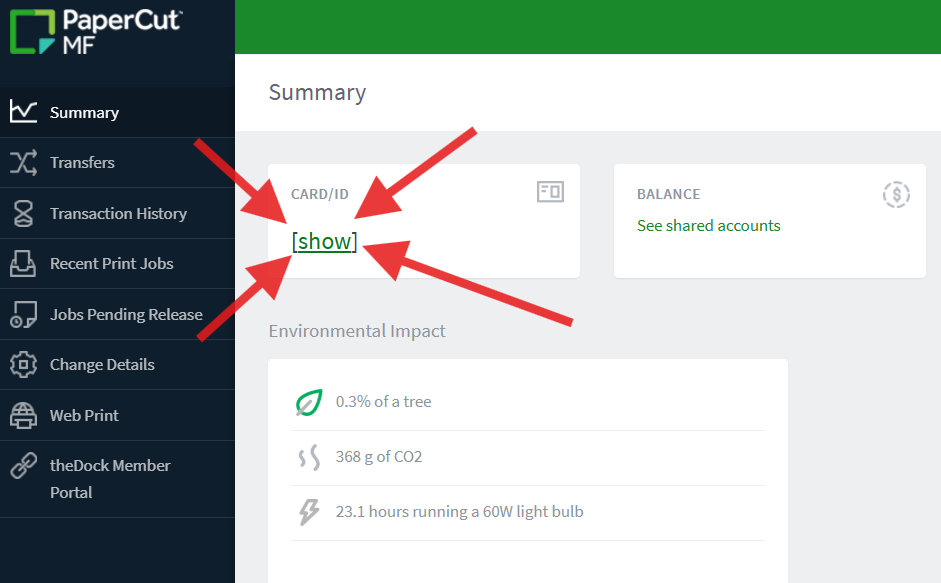
*** Bonus: If you’d like to change your ID number to something more memorable (like the last digits of your phone number…) then click on “Change Details in the left hand side menu!
Step 4
To release your print, physically go to the printer (on the 1st or 3rd floor, you choose!), and enter your ID number, which you should have received via email which you can look up when logged into your PaperCut account here: ID number): http://192.168.4.133:9191
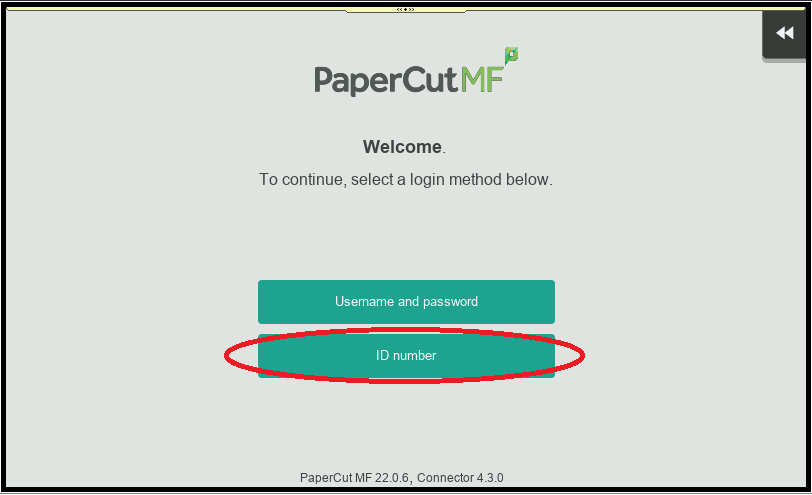
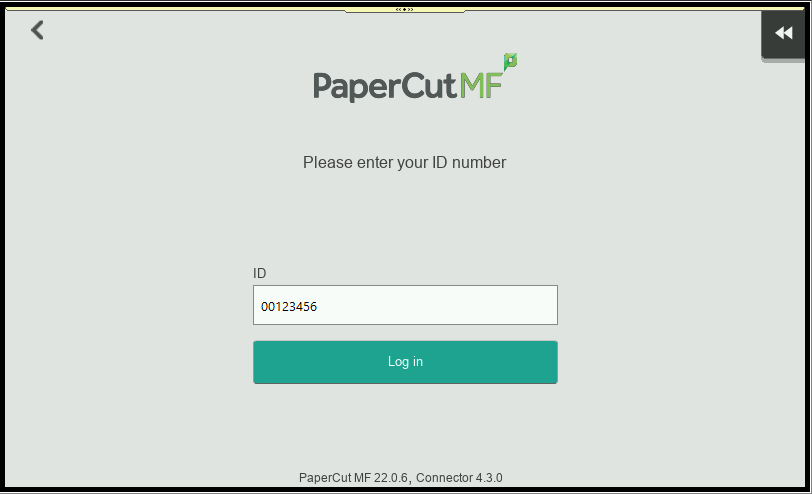
Follow the prompts once logged in to release the print job.
This ID number is now linked to your user accounts in PaperCut + OfficeRnD. If you need assistance getting your ID Number, please speak with a team member or click here
How To Scan Documents
Got to one of the printers (well, technically they’re called Multi-Function Devices/Printers now, but you know what we’re saying) and enter the same ID number that you use to release a print job.
Log in to PaperCut
To check your print credit balance
Step 1: Go to this link -> (Bookmark this link for later!)
http://192.168.4.133:9191
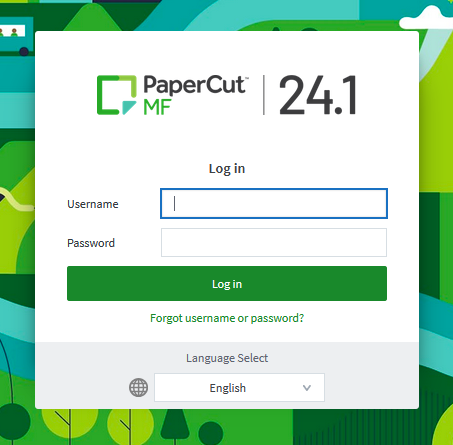
Step 2: Input your Member Portal (OfficeRnD) login details.
That’s it! Here you can:
Check your print credit balance
Members are given $5 for printing services each month.
This money does not carry over month-to-month. If you have unspent money, your balance becomes $5 at the start of the month.
Click on “Summary”
Printing costs:
8.5”x11” (letter): 25¢ per B&W page, 50¢ per coloured page.
11’”x17” (tabloid): 50¢ per B&W page, $1 per coloured page.
View Recent Print Jobs
Click on “View Recent Print Jobs
Change your Card/ID Number
Click on “change details”
This is helpful if you’d like to use a more familiar number, like the last 6 digits of your phone number, for instance.